A Simple Image element that is rendered using the HTML <img> tag.
Features
- Supports tooltip and aria labels using alt text.
- Supports adding caption using the title attribute.
- Supports image resizing using custom attributes.
- Supports loading images from page resource, site resource or remote URLs.
- Loads all images with
loading="lazy"attribute for better performance.
Syntax
The basic syntax for images in Markdown follows this pattern:
Provide additional attributes to images using curly braces after the image syntax:
 {width="600" height="400"}Components
- Alt Text
- Provides alternative text for screen readers and displays when image fails to load
- Also used as tooltip text on hover.
- Image Path
- An image can be rendered from below three sources:
- Page Resource: Image in the same directory as the markdown file (e.g.,
karigurashi002.jpg) - Site/Global Resource: Image in the
assets/directory (e.g.,/images/chihiro043.jpg) - Remote URL: Full HTTP/HTTPS URL (e.g.,
https://example.com/image.jpg)
Note. ├── assets │ └── images │ └── chihiro043.jpg <-- Image from site/global resource └── content ├── _index.md └── advanced ├── _index.md ├── elements │ ├── _index.md │ ├── image │ │ ├── index.md <-- This File │ │ └── karigurashi002.jpg <-- Image from page resource │ └── image.md └── shortcodes └── _index.md - Page Resource: Image in the same directory as the markdown file (e.g.,
- Title
- Displays as a caption below the image
- Attributes
- Supports setting image’s
widthandheightusing hugo’s image processing pipeline.
Refer Hugo’s excellent resource on image processing for more details.
Examples
Example 1: Image from Page Resource
A simple image:
markdown
Output:
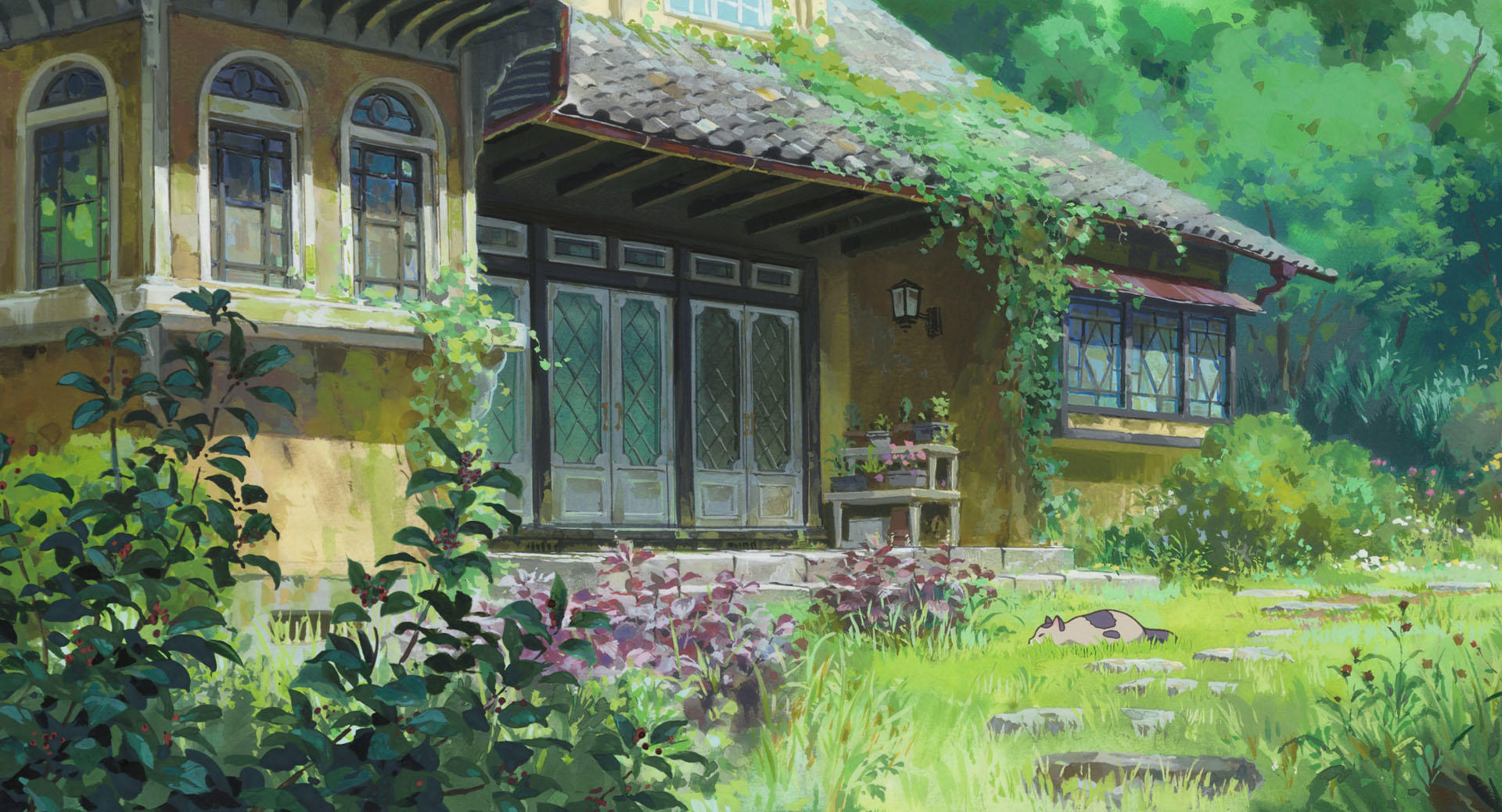
Example 2: Image With Optional Caption
A simple image with optional caption:
markdown
Output:
Caption Alignment
You can align the caption to left, center, or right using the captionAlign attribute:
markdown

{captionalign="right"}Output:
Example 3: Image with Width and Height
Specify both dimensions for precise control:
markdown

{width="300" height="200"}Output:
Example 4: Image from Site Resource
Load an image from the site’s assets/images/ directory:
markdown
Output:
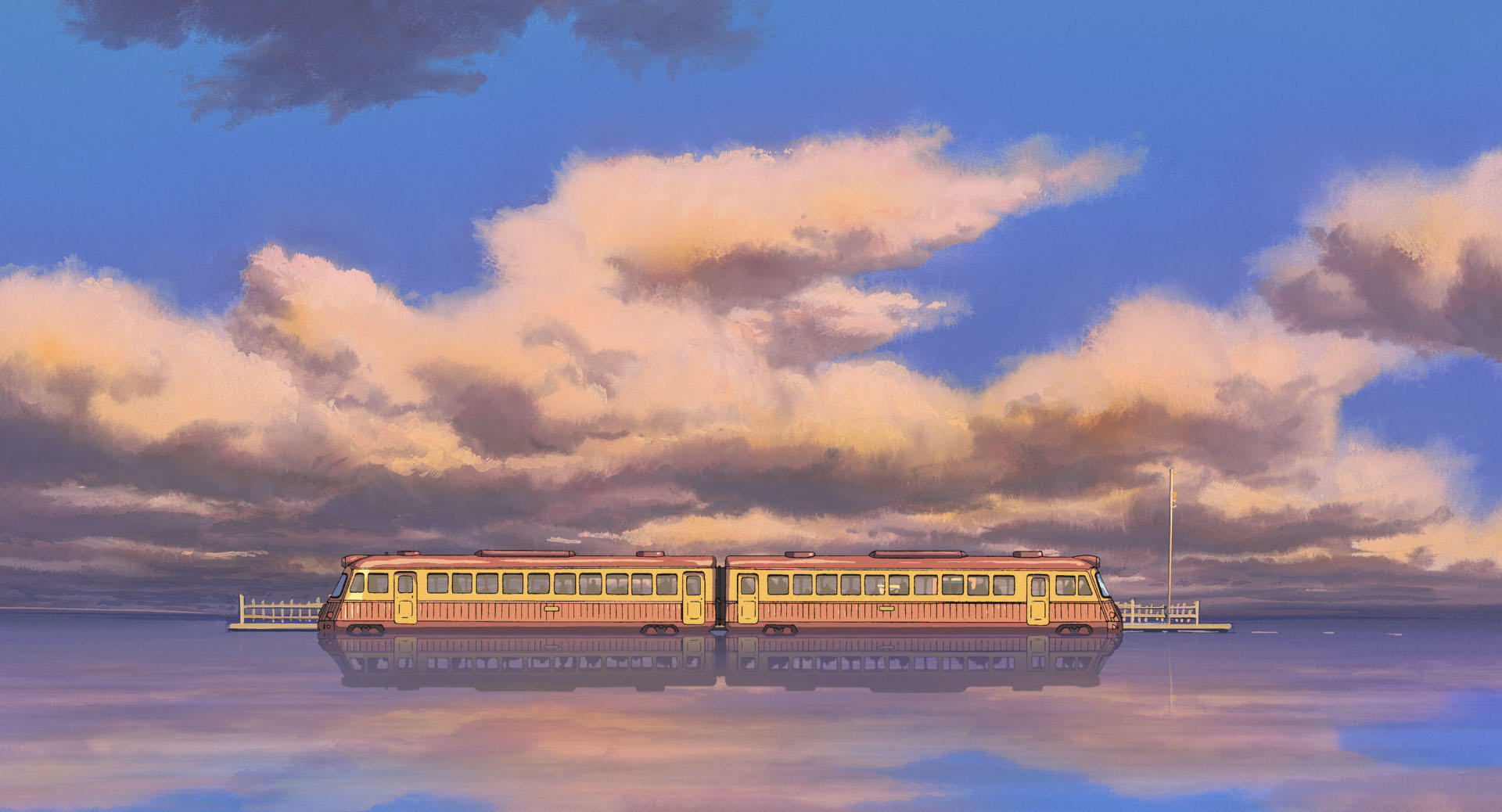
Example 5: Image from remote URL
You can add any valid HTML attributes:
markdown
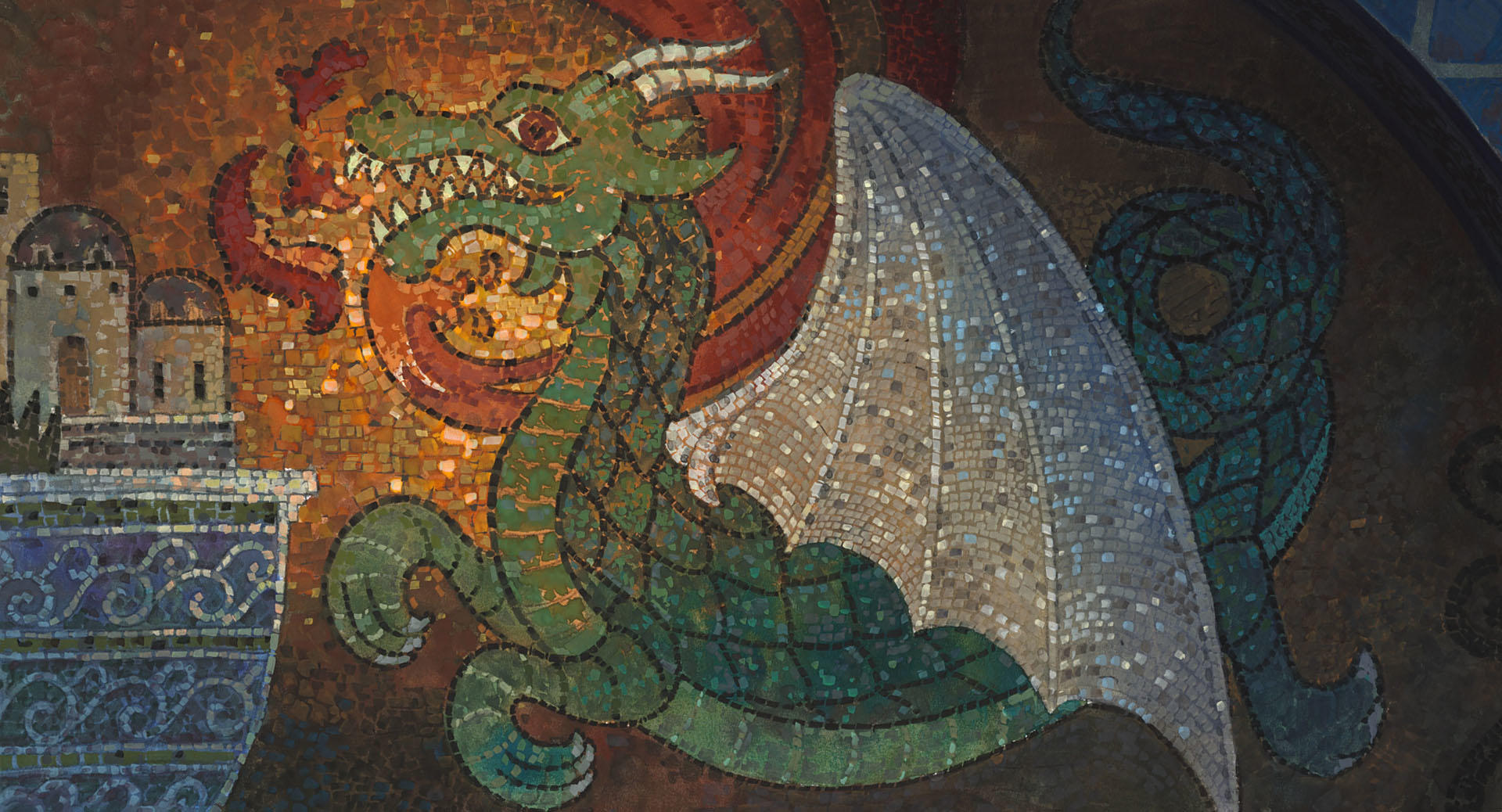Output:
Example 6: Wide Sized Image
Wrap an image in wide partial to make image width extend full width of the viewport.
markdown
{{< wide >}}

{captionalign="center"}
{{< /wide >}}Output: